Download document () of 20
 Send email
Download
You have exceeded the download limit
How to update Brightlayer Distributed IT - Lite software
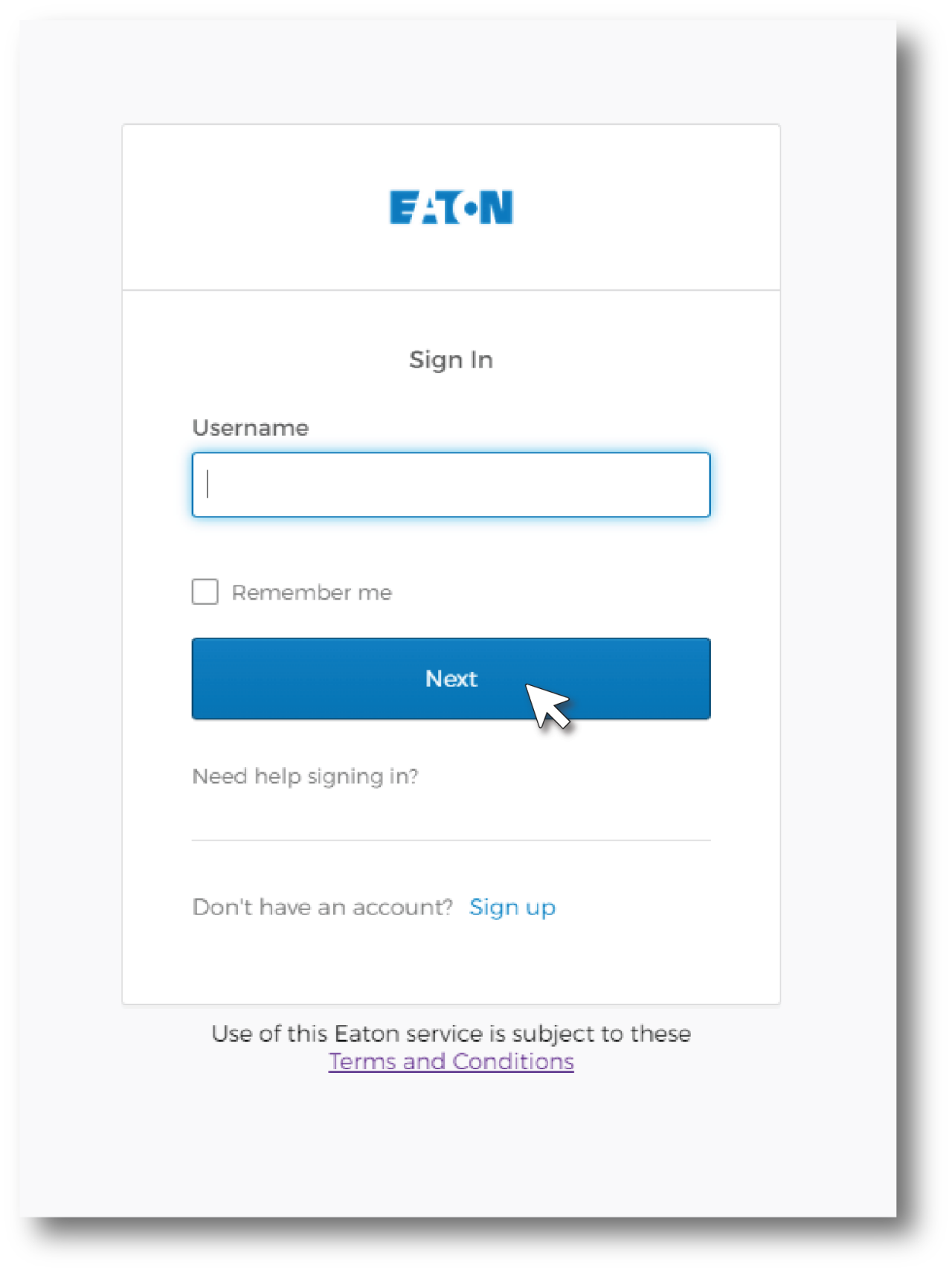
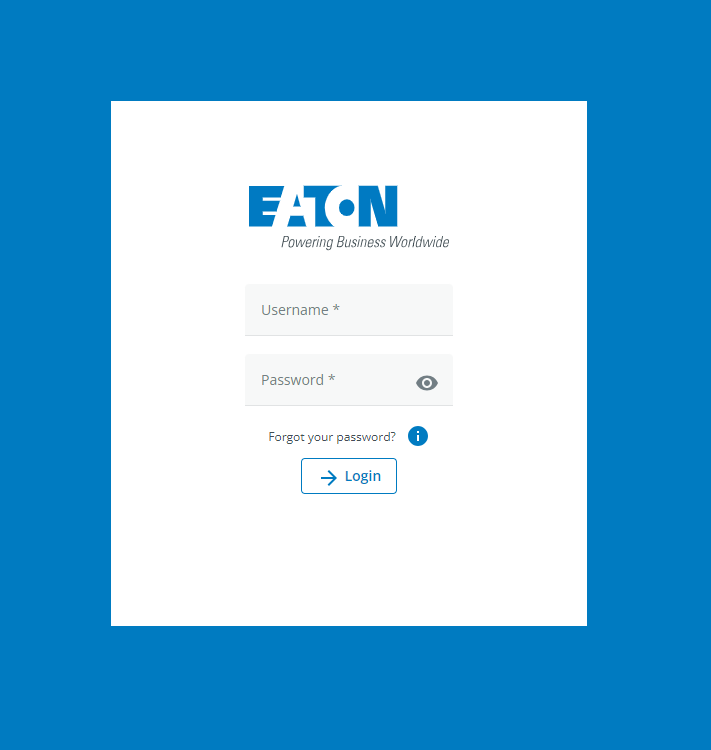
Click the Register/Login button below to login to your MyEaton account. You will see a login screen similar to the image on the left. Type in your user name and click Next. You will then be prompted to enter your password.
If you do not currently have a MyEaton account, click sign up to create one.
IMPORTANT NOTE: If you are redirected from the United States site to a different country site after you sign in, click the globe icon located at the top left corner of the page and select United States.
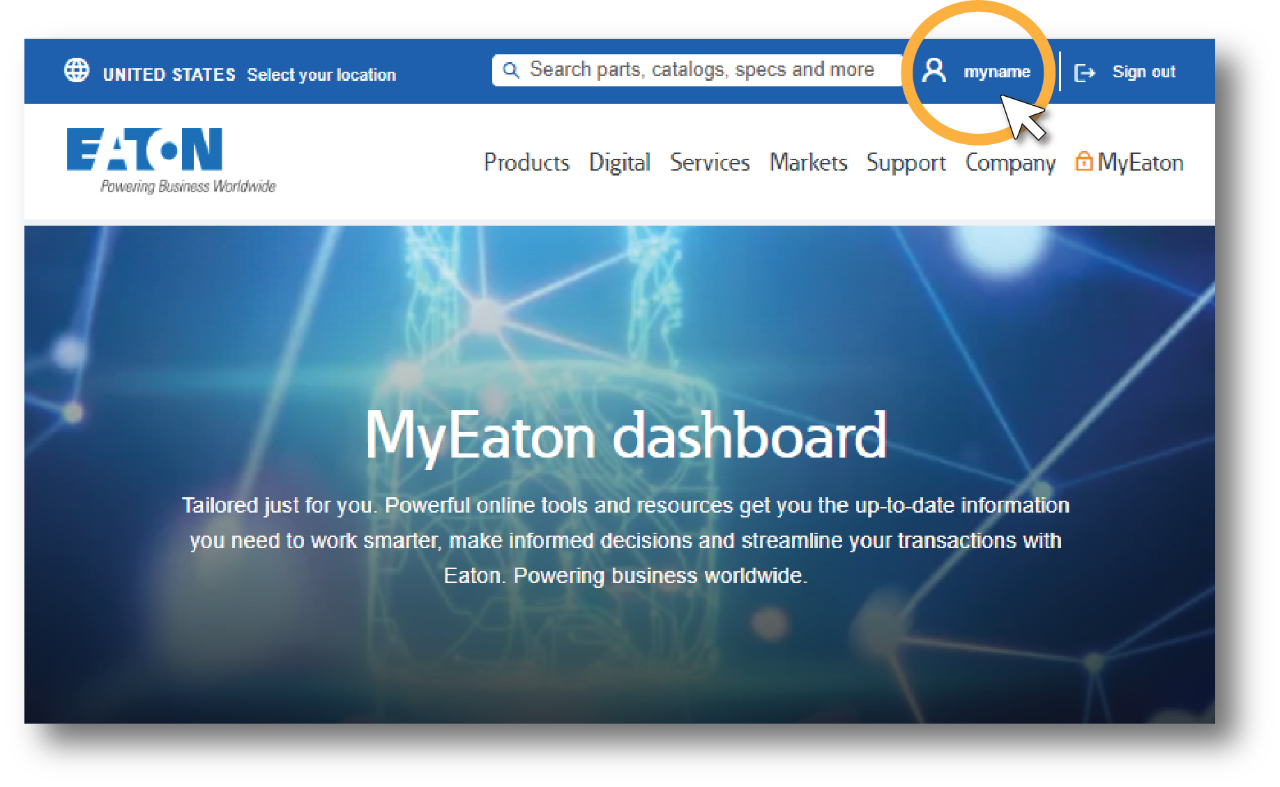
Once logged in, you will be directed to the MyEaton dashboard page. At the top of that page, click on your user name. This will open your MyProfile page. Bookmark this page for easy access in the future.
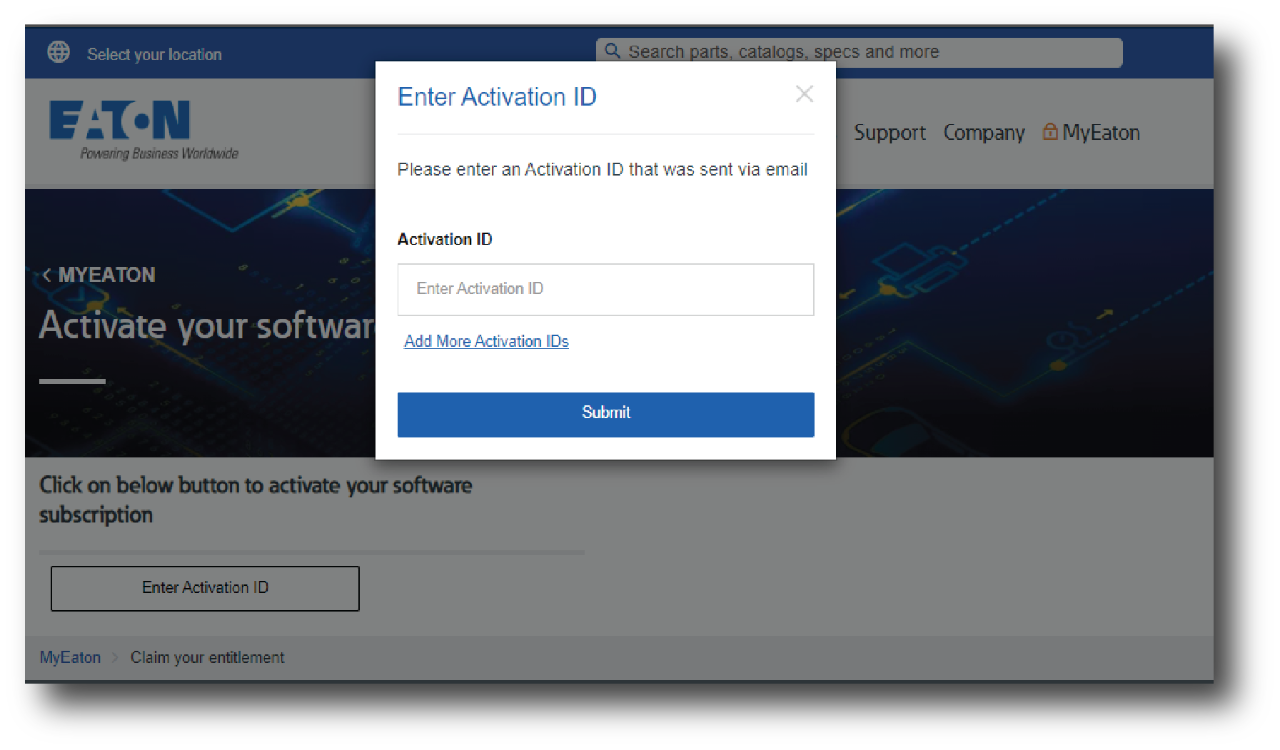
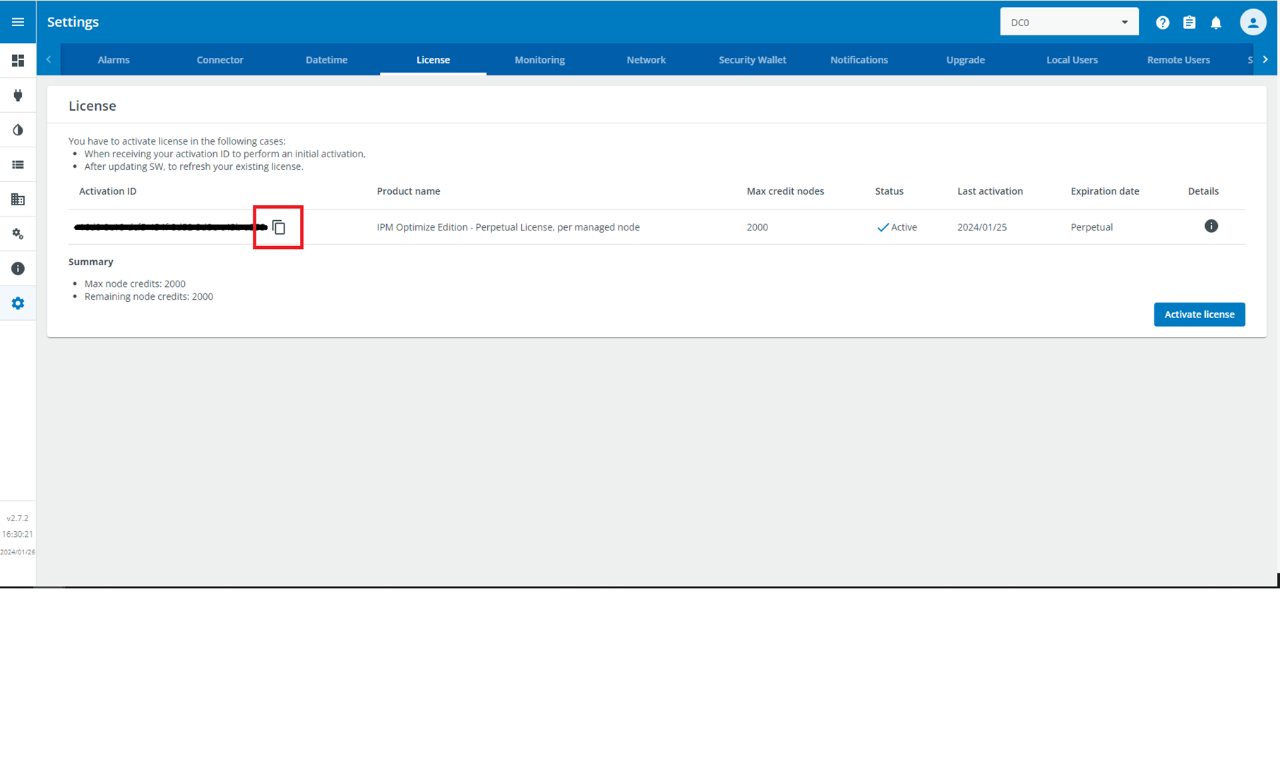
Click the associate software button below. This will take you to a page that will ask you to enter your activation ID. Your activation ID is provided in your Brightlayer Distributed IT - Lite entitlement certificate email. If you no longer have your entitlement email, you can find your activation ID in Brightlayer Distributed IT - Lite by following the instructions here.
Once you've entered your ID, click submit.
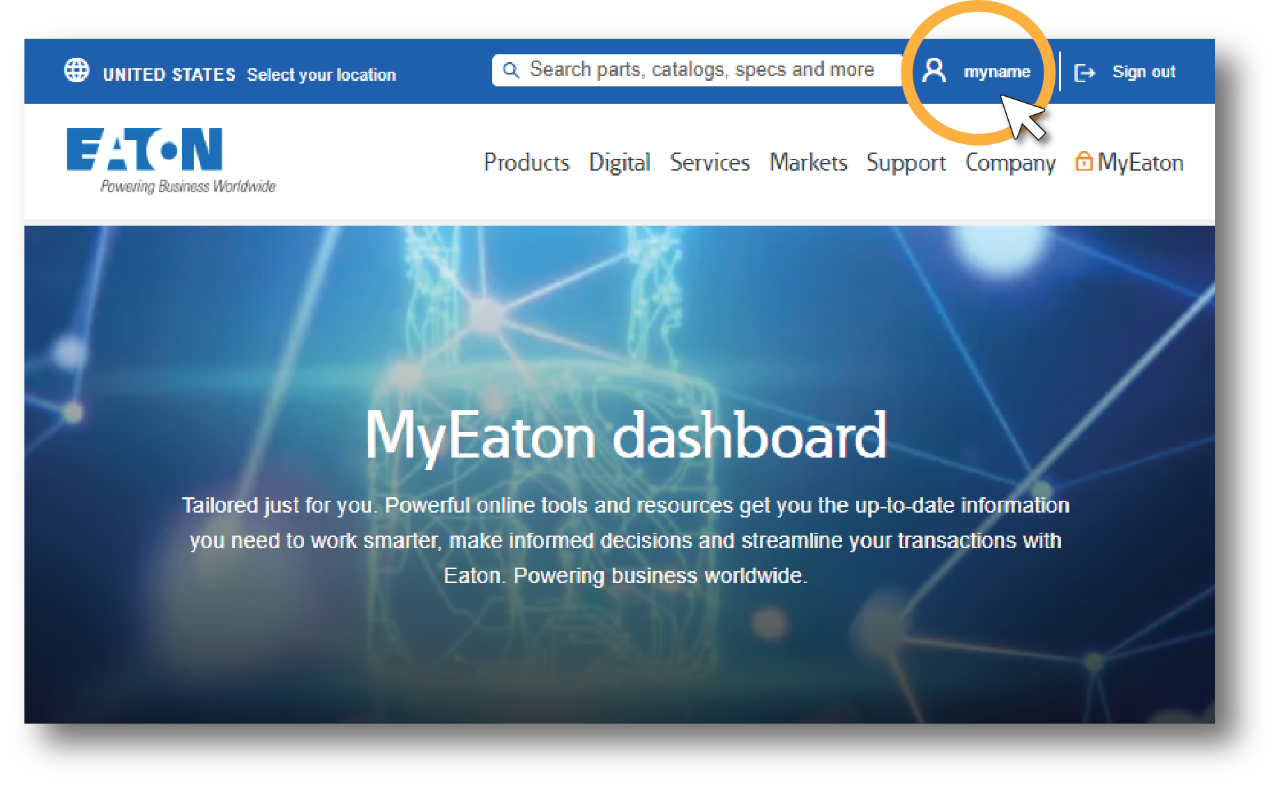
Access your active software subscriptions via the software download section of your MyProfile page.
IMPORTANT NOTE: To see the software download section in your dashboard, you must: 1) complete step 2 to associate your activation ID and 2) be signed into the United States site. If another country appears in the top left corner of the page, click the globe icon and select the United States.
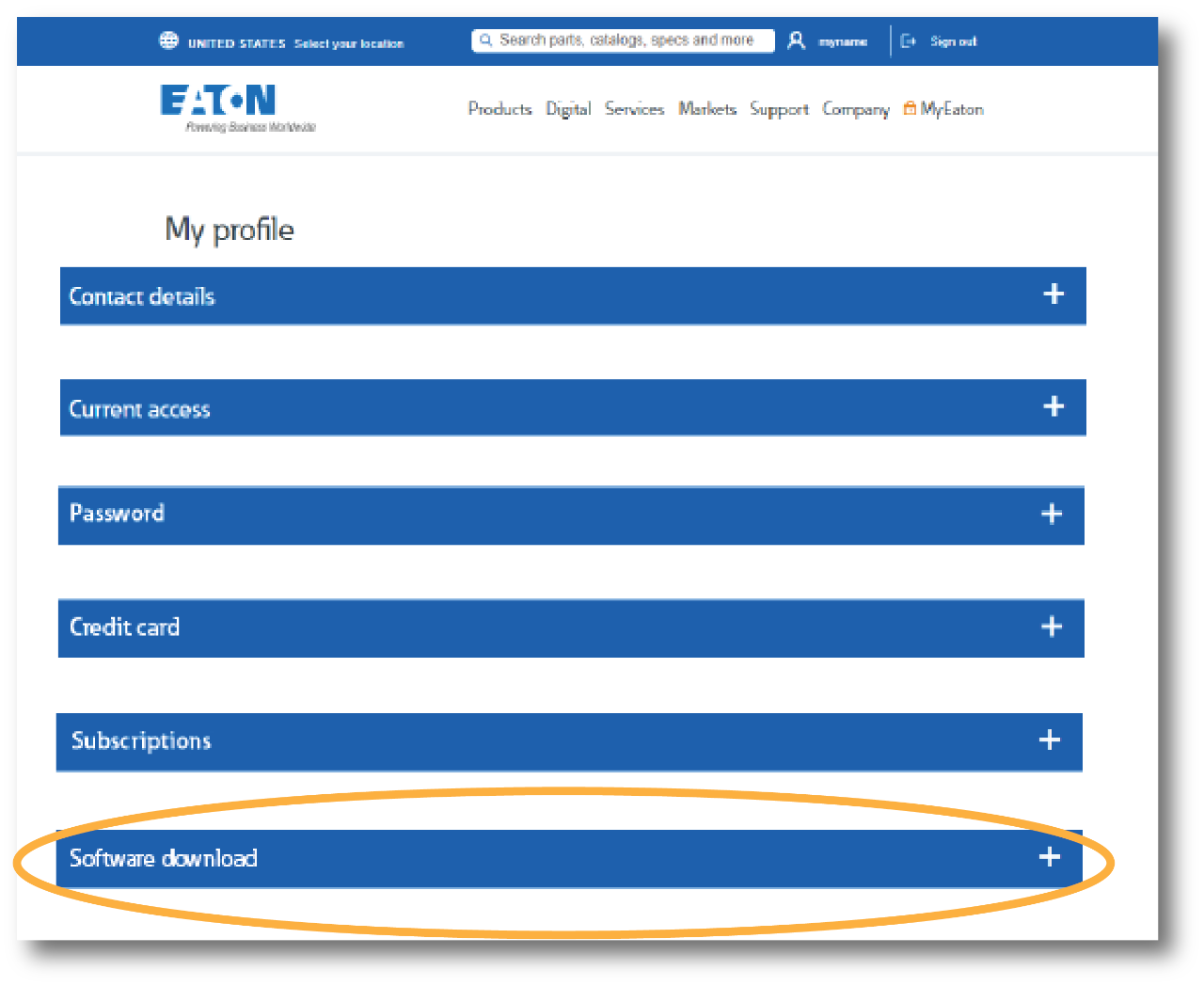
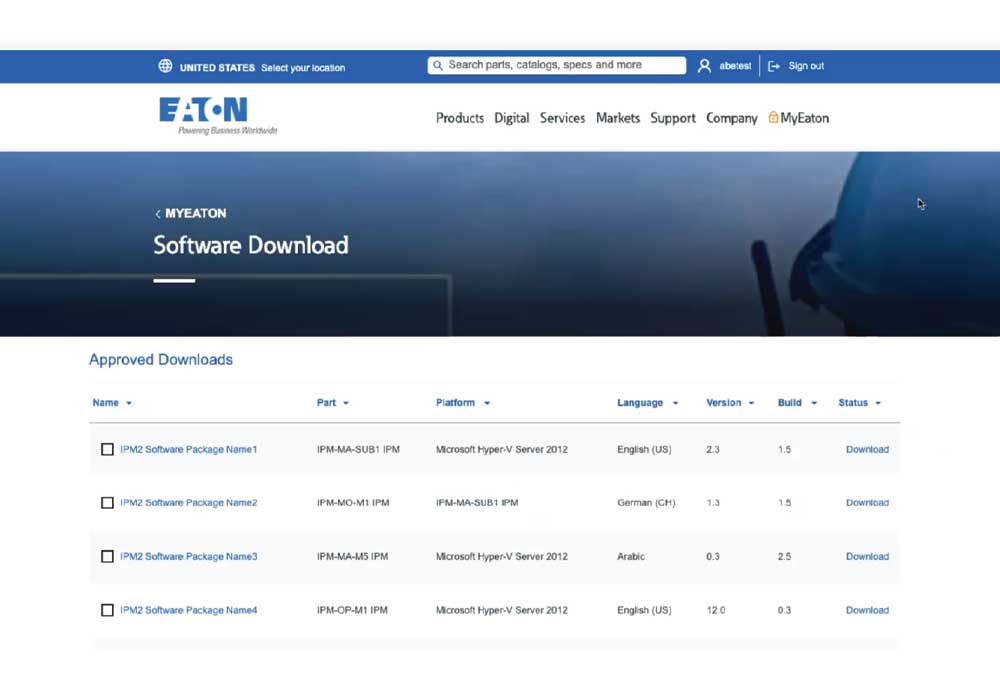
From the software download page, you can download your preferred version of Brightlayer Distributed IT - Lite.
Once you've downloaded your software, go to settings > upgrade in Brightlayer Distributed IT - Lite to upgrade your software. View the upgrade software section of our user guide for step-by-step instructions.
Login to Brightlayer Distributed IT - Lite as an administrator.
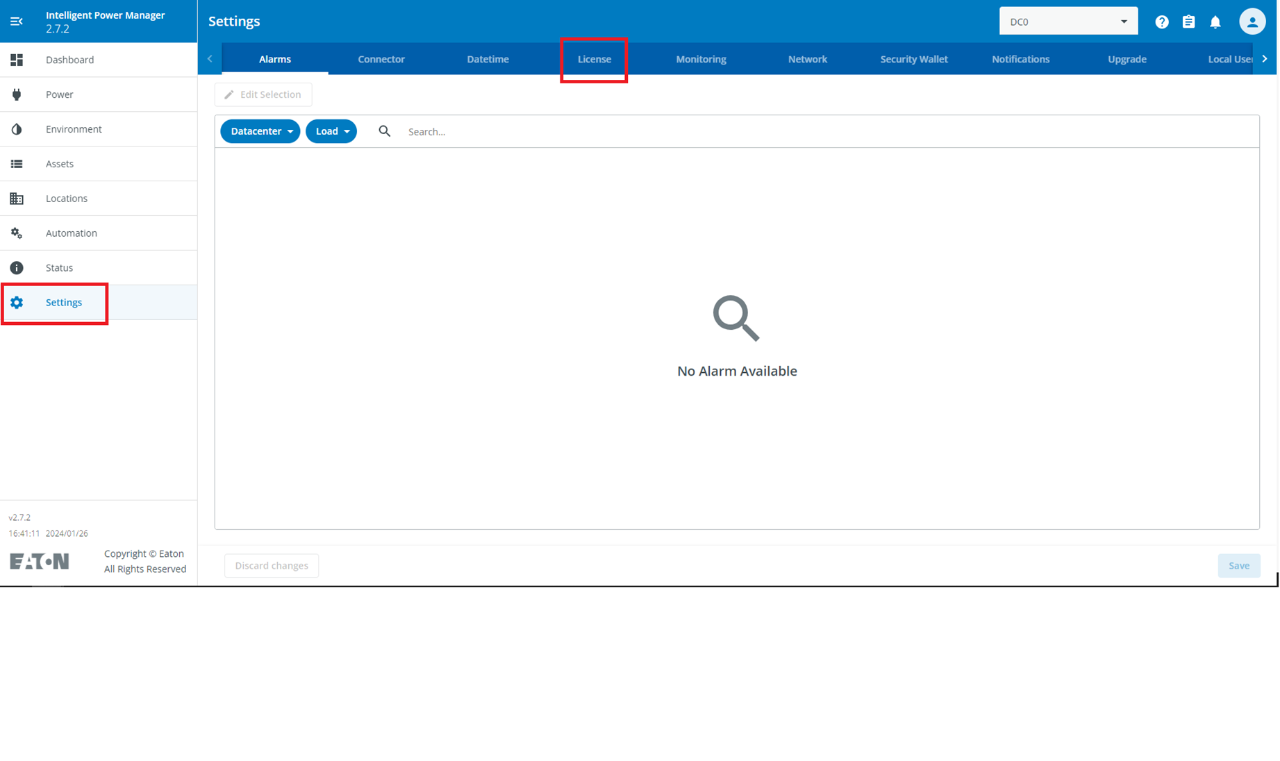
Click Settings in the left navigation; then click the License tab.
Once you're on the License tab, you'll see a table with the licenses associated with your Brightlayer Distributed IT - Lite entitlement. Copy the activation ID you need with the copy button.

 MyEatonFAQs


